
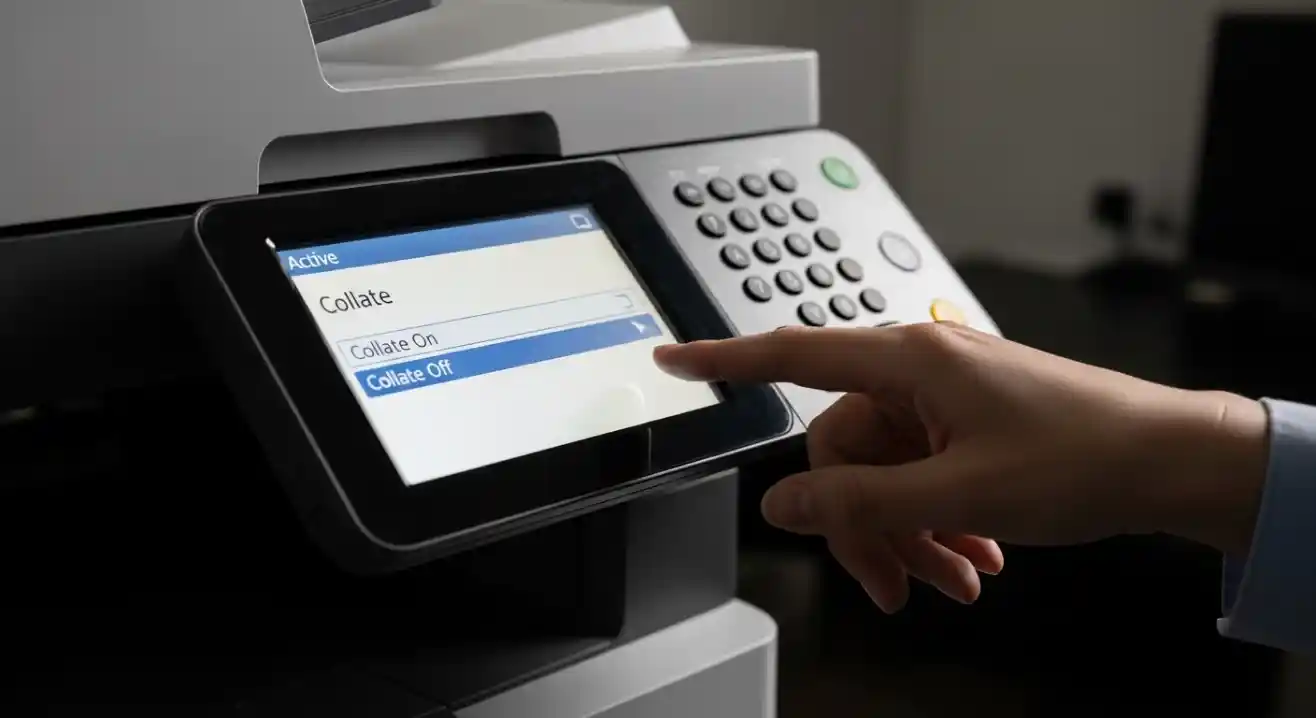

If you’ve ever sent a multi-page document to a printer and noticed a checkbox that says “Collate,” you might have wondered what it actually does. You’re not alone. Most people skip right past it without a second thought — and then end up manually sorting stacks of paper afterward. Understanding what collate in printer means can save you a surprising amount of time, especially when printing multiple copies of the same document.
What Does Collate in Printer Mean?
Collate, in the context of printing, means printing multiple copies of a document in sequential page order. So if you’re printing three copies of a 5-page report, a collated print job will produce: pages 1–2–3–4–5, then 1–2–3–4–5, then 1–2–3–4–5.
Without collate turned on, your printer would print all the copies of page 1 first, then all copies of page 2, and so on. You’d end up with three stacks of individual pages instead of three complete, ready-to-go documents.
In short, collating organizes your print job so each set comes out as a finished document — no manual sorting needed.
How Does Collating Actually Work?
When you select “Collate” in your print settings, you’re telling the printer to complete one full copy of the document before starting the next. The printer processes the entire page sequence once per copy rather than printing each page multiple times in a row.
Here’s a quick comparison:
With Collate ON (3 copies of a 4-page doc):
- Copy 1: Page 1 → Page 2 → Page 3 → Page 4
- Copy 2: Page 1 → Page 2 → Page 3 → Page 4
- Copy 3: Page 1 → Page 2 → Page 3 → Page 4
With Collate OFF:
- Page 1 × 3 copies
- Page 2 × 3 copies
- Page 3 × 3 copies
- Page 4 × 3 copies
The first method gives you three complete, organized booklets. The second gives you four separate piles that you still need to assemble yourself.
Where Do You Find the Collate Option?
The collate setting is usually found in your printer dialog box when you hit Print in any application — whether it’s Microsoft Word, Google Docs, Adobe Acrobat, or even a browser.
Look for it here:
- Windows: File → Print → Copies section (check “Collate”)
- Mac: File → Print → expand the options → Copies & Pages
- Google Docs: File → Print → More settings → Collate checkbox
- Adobe PDF: Print dialog → Copies → Collate checkbox
It’s almost always near the “Number of Copies” field since they go hand in hand.
Denver Broncos vs Atlanta Falcons: Key Player Stats
When Should You Use Collate?
Situations Where Collate Is a Lifesaver
Collating makes the most sense when you’re printing multiple copies of a multi-page document that will be handed out, distributed, or filed separately. For example:
- Meeting handouts — Print 10 copies of a 6-page agenda and each set comes out ready to hand directly to attendees.
- Student reports or assignments — A teacher printing 25 copies of a worksheet packet saves massive time.
- Business proposals — Each copy is ready to present without shuffling.
- Event programs or brochures — Every copy is organized and complete.
When Collate Doesn’t Matter
If you’re printing only one copy of a document, collating doesn’t affect anything. It’s only relevant when you’re printing two or more copies.
Also, if you’re printing a single-page document, collate has no visible effect — there’s only one page per copy, so the order is already irrelevant.
Pros and Cons of Using Collate
Pros
- Saves sorting time — Documents come out pre-organized and ready to use.
- Reduces human error — No risk of mixing up pages from different copies.
- Professional output — Great for business and academic settings where presentation matters.
- Convenient for large print jobs — Especially when printing 10+ copies of long documents.
Cons
- Slower printing speed — The printer processes each full copy separately, which can take longer than batch-printing individual pages.
- Higher memory usage — The printer needs to hold the entire document in its memory for each copy, which can be an issue with older or basic printers.
- Not needed for single copies — Enabling it unnecessarily adds no value.
Common Mistakes People Make With Collate
Even though the concept is simple, people still get tripped up. Here are the most common mistakes:
1. Leaving collate on for single-page jobs This doesn’t cause real harm, but it can slightly slow things down. If you’re printing 50 copies of a one-page flyer, collate is irrelevant — turn it off or leave it as is, it won’t matter.
2. Forgetting to turn collate ON for multi-page documents This is the big one. People print 20 copies of a 10-page report and end up with 10 separate piles of 20 pages each. Manually sorting all of that is tedious and error-prone.
3. Confusing collate with duplex printing Duplex means printing on both sides of the paper. Collate is about page sequence across multiple copies. They’re different settings that can be used independently or together.
4. Assuming all printers handle collate the same way Most modern printers handle collating in their hardware. But some older or basic models may rely on the software (your computer) to manage collating, which can be slower and less reliable.
5. Not previewing the print job first Always use Print Preview to catch any layout or setting issues before printing 30 copies of something incorrectly.
Best Practices for Using the Collate Setting
Getting the most out of your printer’s collate feature doesn’t take much. Just keep these habits in mind:
- Always double-check your collate setting when printing multiple copies of any document longer than one page.
- Use collate alongside other settings like duplex printing or stapling (if your printer supports it) for a fully finished output.
- For large office print jobs, test-print one collated copy first to make sure everything looks right before printing the full batch.
- Keep your printer drivers updated — Modern drivers handle collating more efficiently and reliably than outdated ones.
- Use PDF format for important documents — PDFs maintain their formatting and page order consistently, which works hand in hand with reliable collating.
Conclusion
Once you know what collate in printer means, it becomes one of those settings you’ll never ignore again. It’s a small checkbox with a big impact — especially when you’re printing multi-page documents in bulk. Instead of spending time sorting stacks of loose pages, collating lets your printer do the heavy lifting so each copy comes out ready to use.
Whether you’re a student, a teacher, an office manager, or just someone who prints at home occasionally, understanding this setting helps you print smarter. So next time you’re about to hit that print button, take a second to check whether collate is turned on. Your future self will thank you.
Frequently Asked Questions (FAQs)
1. What does collate mean when printing?
Collate means printing multiple copies of a document in complete, sequential order. Instead of printing all copies of each page separately, the printer completes one full copy before starting the next.
2. Should collate be on or off?
Turn collate ON when printing multiple copies of a multi-page document. Turn it OFF (or leave it as is) when printing single-page documents or when you only need one copy.
3. Does collating slow down printing?
Yes, slightly. Because the printer processes each copy separately rather than batching identical pages, collated jobs can take a little longer — especially on older printers.
4. Is collate the same as duplex printing?
No. Duplex printing means printing on both sides of a sheet of paper. Collating refers to the order in which multiple copies are printed. You can use both settings together.
5. Where is the collate option in Windows print settings?
Go to File → Print, then look near the “Copies” field. There should be a checkbox labeled “Collate.” Check it to enable sequential copy printing.